> For the complete documentation index, see [llms.txt](https://docs.norrnext.com/klarna-payments-hpp-for-phoca-cart/llms.txt). Markdown versions of documentation pages are available by appending `.md` to page URLs; this page is available as [Markdown](https://docs.norrnext.com/klarna-payments-hpp-for-phoca-cart/klarna-configuration.md).
# Klarna configuration
Learn how to configure Phoca Cart to accept payments.
Sign in to the Klarna.
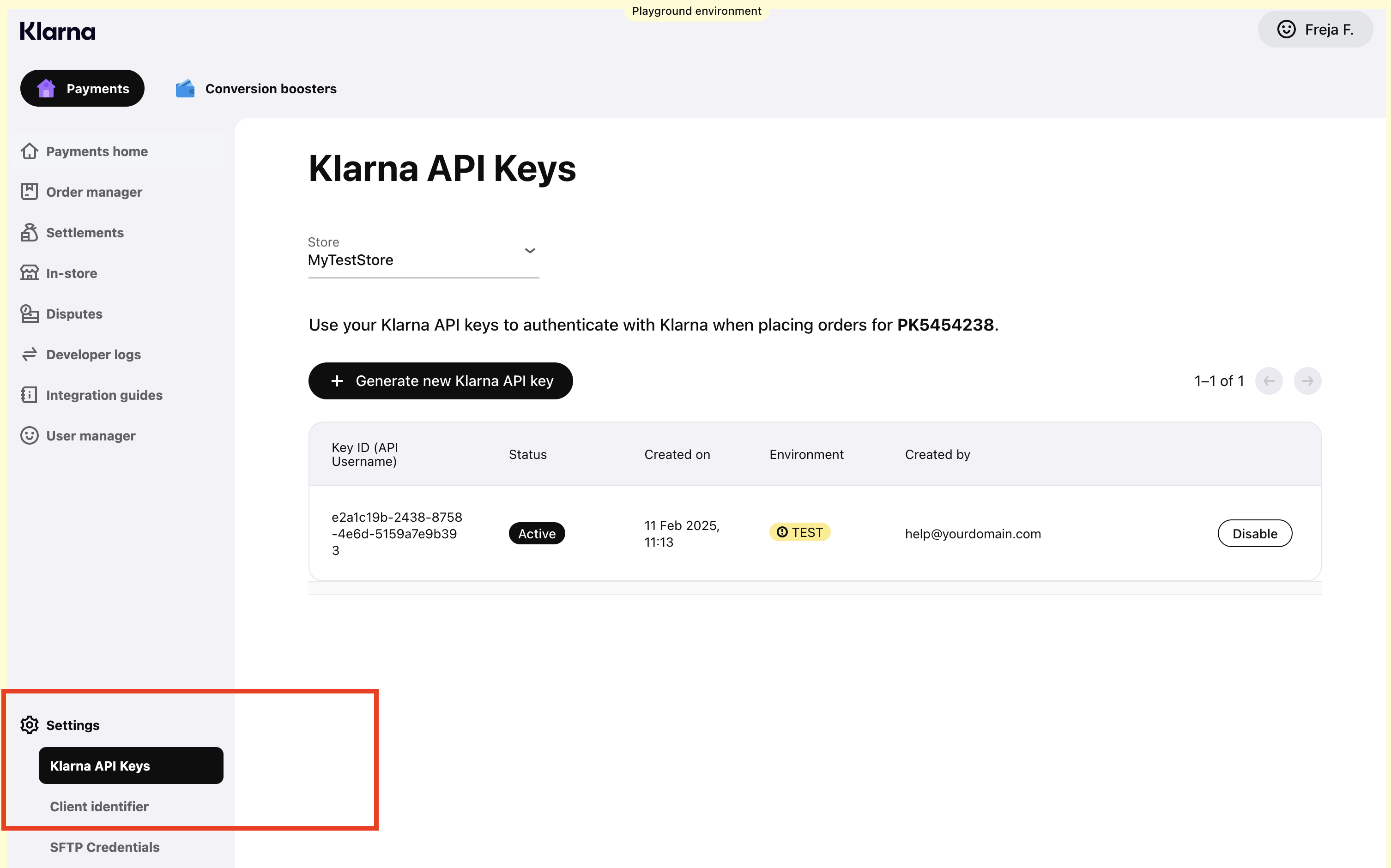
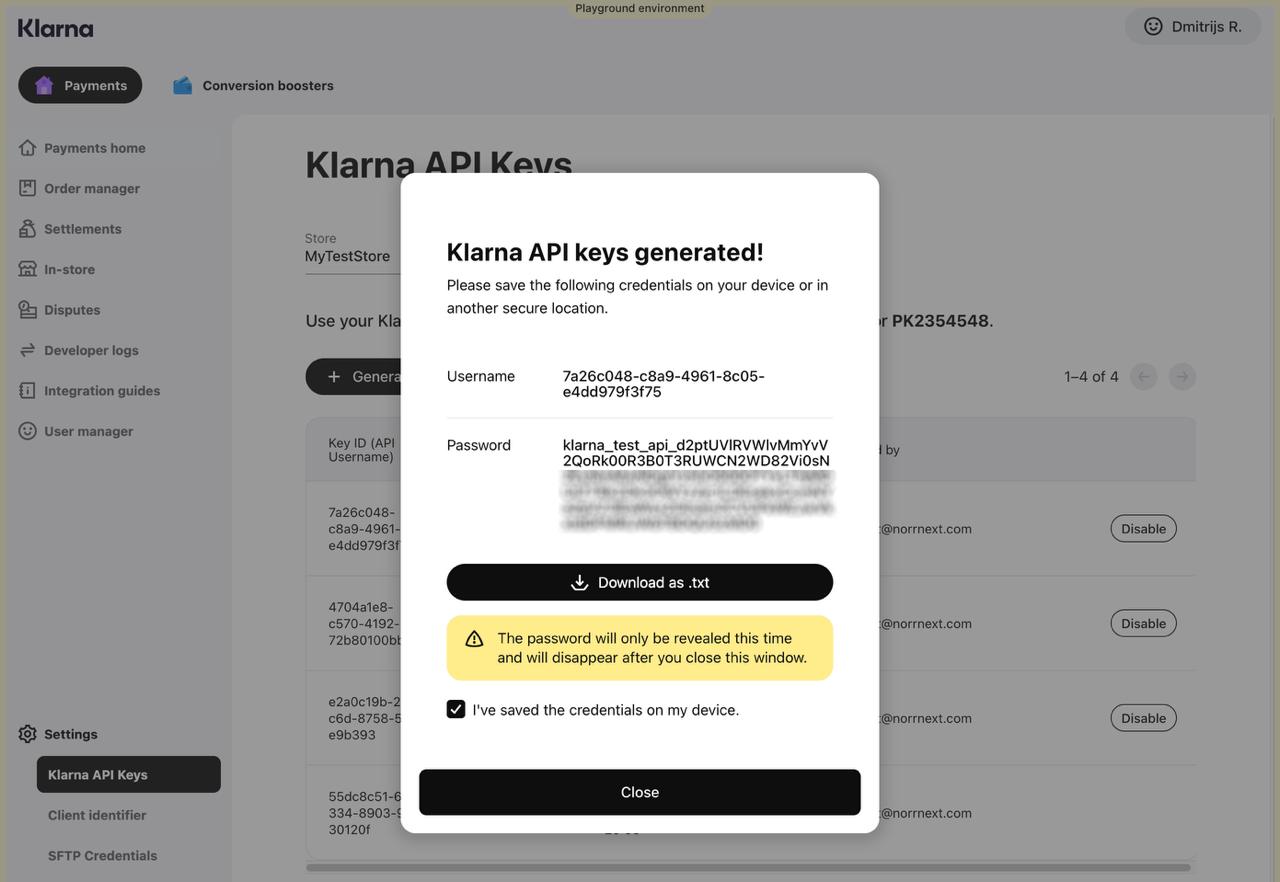
Navigate to `Settings > Klarna API Keys` in the sidebar menu. Then go to `Developers > API Keys` and generate a new pair of credentials (API Username and API Password). Copy the **Key ID (API Username)** and **API Password** — you’ll need them later when configuring the Klarna payment method in Phoca Cart:
Go to Klarna dashboard > Settings > Klarna API keys
Please copy the following data:
* **Key ID (API Username)**
* **API Password**
Klarna API keys generated
### Payment methods
* Log in to your **Klarna Merchant Portal**.
* Go to **Settings → Payment Methods**.
* Enable the additional methods you want to offer (e.g., **Pay Later**, **Slice It**, **Direct Debit**, etc.).
* Save your changes. These methods will then appear automatically in your Klarna integration, depending on the shopper’s country and eligibility.
In case of troubles with adding payment method, please contact Klarna's support team directly.
#### A video 'How to add payment method in Klarna' from third-party person:
{% embed url="" %}
{% hint style="warning" %}
There’s no need to activate individual payment methods in the Phoca Cart Klarna plugin. All available methods are supported — you only need to configure them directly in your Klarna account.
{% endhint %}